
A timeout-related export issue can affect invoice or visit processing and may result in duplicate visit entries being created in AlayaCare. The goal of this process is to identify the affected visits, confirm whether duplicates exist, and advise the client on the manual action needed on their side.
When to use this articleUse this article when:
- A client reports duplicate visits in AlayaCare
- An exported item shows a timeout-related error in the event logs
- You need to identify other visits impacted by the same timeout issue
The goal of this KB is to assist the client in identifying which visits were affected by the timeout issue encountered during export, and to confirm whether those affected visits created duplicate entries in AlayaCare.
Investigation steps1. Check the event logs
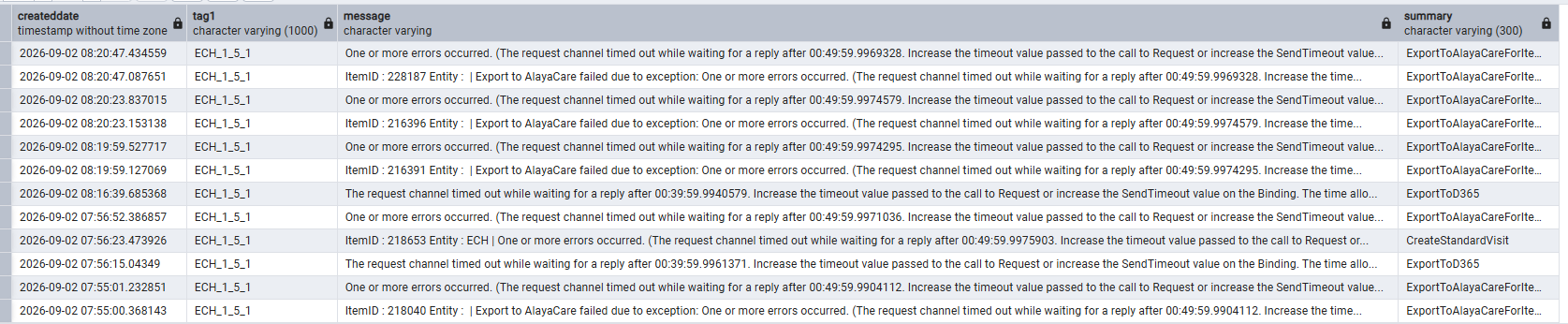
Review the event logs and confirm whether the same timeout-related error is occurring.
What to look for:
- A timeout error tied to the export process
- Other items showing the same failure pattern
- The date and time range when the issue occurred
If the same timeout error appears across multiple items, treat those items as potentially affected and continue the investigation.
2. Identify the affected items
Build a list of all items that show the same timeout error in the logs.
Make sure to:
- Filter the logs carefully to the relevant incident window
- Exclude unrelated historical items
- Confirm that the items match the same error pattern before including them in the affected list
This step is important so the client receives an accurate list of visits to review.
3. Check AlayaCare for duplicate entries
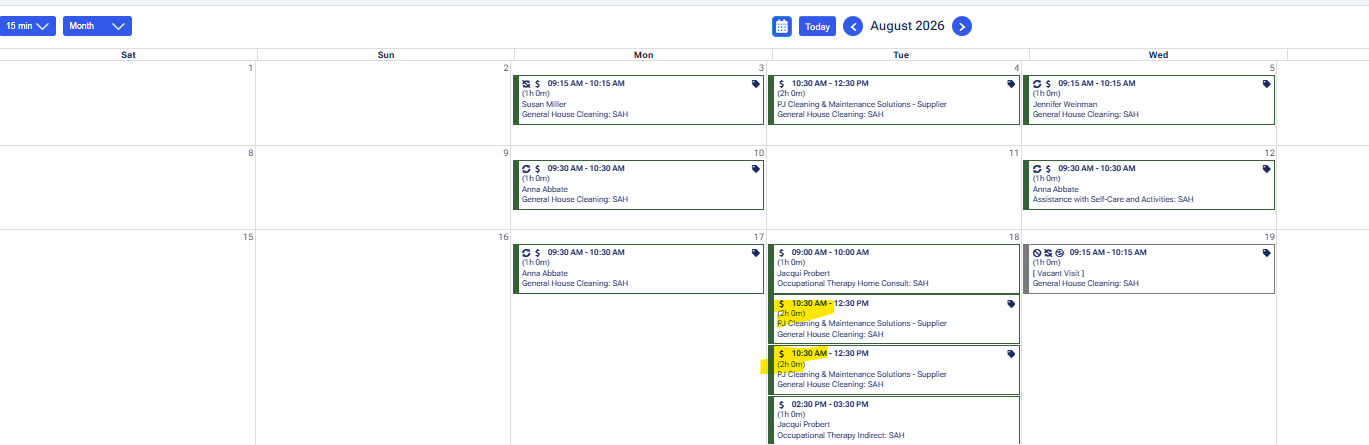
For each affected item, check AlayaCare and confirm whether the timeout error resulted in a duplicate visit entry.
What to verify:
- Whether more than one visit was posted for the same item
- Whether the duplicate entries carry the same identifiers or visit details
- Whether the export created a duplicate despite the source record showing only one valid item to post
4. Advise the client on manual cleanup
If duplicate visit entries are confirmed in AlayaCare, advise the client that the duplicate visits need to be manually removed on their end.
Suggested guidance:
- Confirm which visits were affected
- Tell the client which entries appear to be duplicates
- Ask the client to manually remove or credit the duplicate visits in AlayaCare, based on their process
- If need to run some queries, please seek assistance from L2 or L3
We identified a timeout-related export issue that may have affected multiple visits during processing. We recommend reviewing the attached or provided list of affected items and checking whether duplicate visit entries were created in AlayaCare. If duplicate entries are present, please manually remove or action those duplicate visits on your end.
Internal notes- Use this process to help narrow down which visits were affected by the timeout issue
- The main objective is identification and confirmation of impacted visits
- Client action is required if duplicate entries were created in AlayaCare
- Be careful not to include unrelated items when preparing the affected-item list
Once the affected items have been identified, duplicates in AlayaCare have been confirmed, and the client has been advised on manual removal, the ticket can be updated accordingly.