
Overview
Use this guide when Lookup_Client is not being updated as expected.
The issue may be related to the API credentials, the permissions assigned to the AlayaCare user account, or the API configuration in Production.
This guide explains how to identify the cause, test the connection, update the credentials when required, and safely apply the changes to Production.
Before You Start
Before making any changes, make sure you have:
- Access to the Production environment.
- Access to Postman for testing the API.
- Access to Bitwarden.
- The new API username/password or API keys, if provided.
- The required access to AlayaCare API Manager.
- The ability to create a Cloud ticket.
Important: Do not immediately change the Production credentials. Always test the new credentials first and keep a record of the existing credentials.
Step 1: Check if the Production Credentials Are Working
The first thing to check is whether the credentials currently being used in Production are still valid.
Test the existing credentials in Production.
If the credentials are working, continue troubleshooting to determine whether the issue is specific to the Client API.
If the credentials are not working, you may need to obtain or use new credentials.
Step 2: Confirm if the Issue Is Specific to the Client API
Check whether the issue affects only the Client API or whether other APIs are also affected.
This helps determine whether the problem is with the general API connection or specifically with the permissions/configuration required for the Client API.
What to check
- Is
Lookup_Clientthe only affected function? - Are other API functions working normally?
- Can other API requests be completed successfully?
If other APIs are working but Lookup_Client is not, the issue may be related to the user's AlayaCare role or permissions.
Step 3: Test the API Manually in Postman
Use Postman to manually test the Client API.
Run the request that is normally used to retrieve or update the client information.
Review the response for an error message.
Screenshot:
Why this step is important
The Postman response can help confirm whether the issue is caused by:
- Invalid credentials
- Insufficient user permissions
- API access restrictions
- An issue with the Client API
Record the error message before making any changes.
Step 4: Check the AlayaCare User Role
According to the guidance provided by the PMO and AlayaCare, one possible fix is to update the API user's role to System Administrator.
You can check the user's role in:
Settings → External Integrations → API Manager
Find the user account being used for the API integration and check its assigned role.
Screenshot: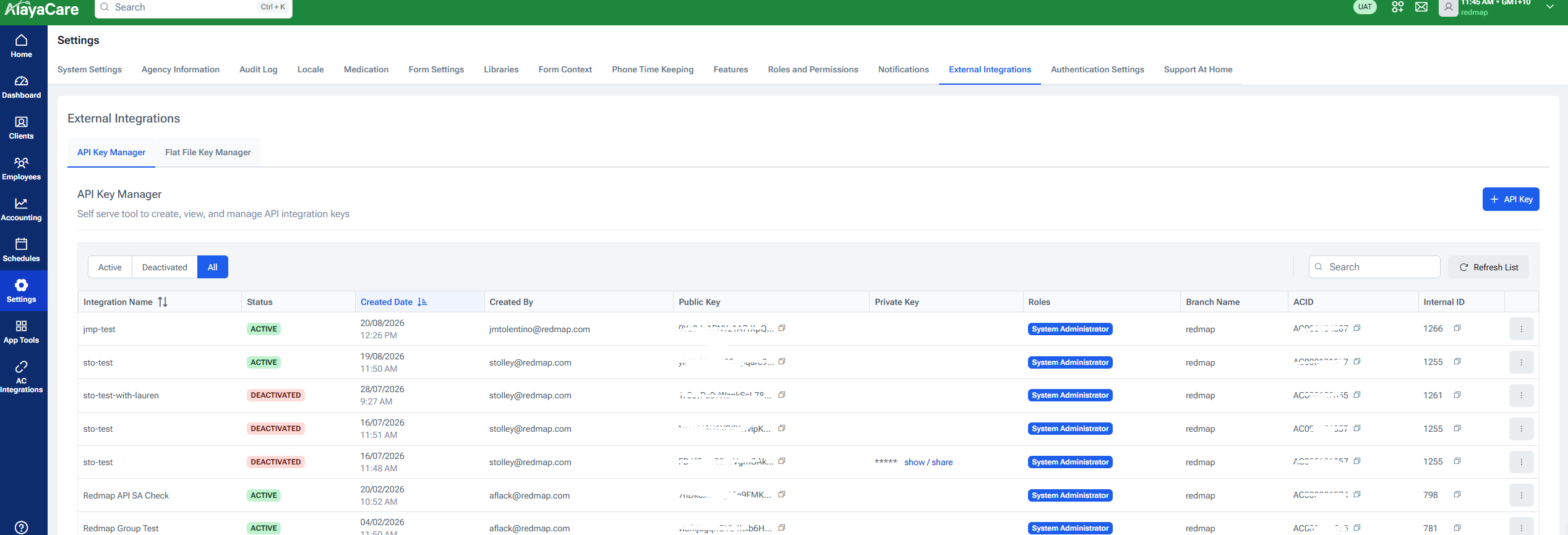
Recommended role
The initial recommendation from AlayaCare is: System Administrator
However, this role provides broad access and may not be acceptable for every client.
Important: Do not change a client's user to System Administrator without confirming that the client allows this level of access.
Step 5: Alternative Role — Redmap
If the client does not want the API user to have System Administrator access, AlayaCare has advised that the Redmap role can be used instead.
When using the Redmap role, make sure:
View Full Caseload is enabled.
This permission is required for the API user to access the necessary client information.
Recommended approach
Where possible:
- Use the Redmap role.
- Confirm that View Full Caseload is enabled.
- Test the Client API again using Postman.
- Confirm that
Lookup_Clientis now working.
Screenshot: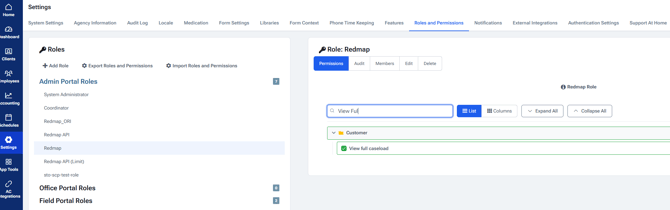
Step 6: Test New API Credentials
If new API keys or credentials have been provided, do not apply them directly to Production.
First, test them in Postman.
Confirm that:
- The new username/password or API keys are accepted.
- The Client API request works.
Lookup_Clientis returning the expected result.
If the test is successful
Once the new credentials have been confirmed to work, they can be prepared for use in Production.
Make sure that the latest API Keys are added in the Bitwarden as well.
Step 7: Back Up the Existing Production Credentials
Before changing anything in Production, make sure the existing credentials are recorded and available in Bitwarden.
This is important because the previous credentials may need to be restored if the new credentials do not work as expected.
Before making the change, confirm:
- The current username is saved in Bitwarden.
- The current password is saved in Bitwarden.
- The credentials are clearly identified as the current Production credentials.
- You know which credentials are currently being used by the integration.
Important: Never remove or overwrite the existing credentials before confirming that a backup is available.
Step 8: Update the Credentials in Production
Once the new credentials have been tested successfully and the existing credentials have been backed up, update the Production configuration.
Navigate to:
XConnector → Plugin
Locate:
- Username for Public Keys
- Password for Private Keys
Update the appropriate values with the new credentials.
Screenshot: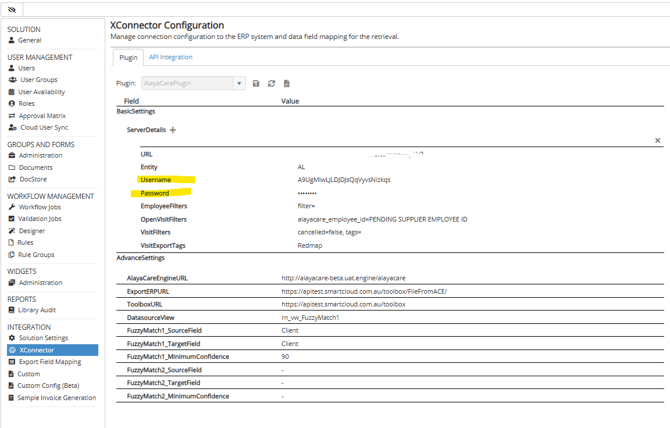
Step 9: Update the AlayaCare API Integration
Next, update the credentials in the AlayaCare API integration.
Go to:
API Integration → Select the AlayaCare URL → Server Details
Locate the Username and Password fields.
Update these with the new credentials.
Screenshot: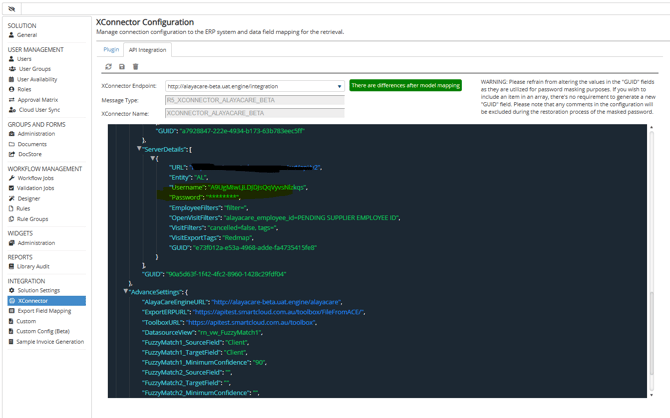
Important: Make sure the credentials entered here match the credentials that were successfully tested in Postman.
Step 10: Create a Cloud Ticket
After making the Production change, create a Cloud ticket to inform the Cloud team that the integration credentials have been updated.
Include:
- The reason for the change.
- The affected integration.
- Confirmation that the new credentials were tested.
- Confirmation that the Production credentials were updated.
- The date/time of the change.
- Any relevant Postman test results or error messages.
Do not include passwords or sensitive credentials in the ticket.
Sample Ticket : https://redmap.atlassian.net/browse/SMCL-692073
Step 11: Confirm the Issue Is Resolved
After the Production change, perform a final test.
Confirm that:
- The API connection is working.
- The Client API is responding successfully.
Lookup_Clientis being updated.- No new errors are appearing.
- The integration is functioning as expected.
If possible, monitor the integration after the change to make sure the issue does not return.
Quick Troubleshooting Flow
Use the following flow when troubleshooting a Lookup_Client issue:
Lookup_Client not updating
↓
Test current Production credentials
↓
Are the credentials working?
- Yes → Check whether the issue is specific to the Client API.
- No → Check for new credentials/API keys.
↓
Test Client API in Postman
↓
Check the AlayaCare API user's role
- System Administrator → Test the API again.
- Redmap → Confirm View Full Caseload is enabled, then test again.
↓
Still not working?
→ Check for new API credentials and test them in Postman.
↓
New credentials working?
→ Back up current credentials in Bitwarden.
↓
Update Production credentials
→ XConnector → Plugin
→ API Integration → AlayaCare URL → Server Details
↓
Create Cloud ticket
↓
Perform final Lookup_Client test
Important Reminders
- Always test credentials before applying them to Production.
- Always keep a backup of the current Production credentials in Bitwarden.
- Do not assume System Administrator is required for every client.
- Redmap + View Full Caseload may be used when System Administrator access is not acceptable to the client.
- Do not include passwords or API keys in Cloud tickets.
- Always test
Lookup_Clientafter making a Production change. - If the issue is still occurring after following this guide, escalate with the Postman error and relevant integration details.
Related Information
Affected Component: Lookup_Client / Client API
Primary Systems: AlayaCare, XConnector, Postman
Credential Storage: Bitwarden
Escalation: Cloud Team